Installation
Follow these steps to install and set up ShapeKeyPro in Blender.
Installation Guide
Installation Steps
Complete guide to installing ShapeKeyPro
- Download: Get the .zip file from Super Hive
- Open Blender: Launch Blender
- Access Preferences: Go to Edit → Preferences
- Install Add-on: Select Add-ons tab → Click "Install..." → Locate and select the .zip file
- Enable Add-on: Check the box next to "Object: ShapeKeyPro" in the list
- Install Dependencies: After enabling, expand the ShapeKeyPro in the preferences panel by clicking the arrow, and click on "Install Dependencies" if it shows as not installed
- Access ShapeKeyPro: In the 3D Viewport, press N to open the side panel and select the "ShapeKeyPro" tab
- Save Preferences: Recommended to keep enabled in future sessions
Update Steps
How to update ShapeKeyPro to the latest version
- Clean Install Recommended: For best results, perform a clean installation
- Remove Old Version: Go to Edit → Preferences → Add-ons → Find "ShapeKeyPro" → Click Remove
- Download New Version: Get the latest .zip file from Super Hive
- Install New Version: Follow the installation steps above with the new .zip file
- Restart Blender: Close and restart Blender to ensure clean initialization
- Verify Installation: Check that the new version is working correctly
Getting Started
This quick guide will help you get started with ShapeKeyPro's essential features.
Basic Workflow
Getting started with shape key creation and editing
- Create Shape Keys: Start with the "Create" button to add a new shape key
- Edit Shapes: Select a shape key, enter Edit Mode, and modify vertices
- Test Deformation: Use the value slider to test shape key influence
- Mirror: Quickly create symmetrical deformations with the Mirror button
- Organize: Group related shape keys using the Shape Key Groups tab
- Global Mode: Enable to synchronize shape keys with the same name across multiple objects
- Show Basis Key: Toggle visibility of the reference Basis key to focus on deformation keys
Main Panel
The Main Panel is the primary interface for managing shape keys in ShapeKeyPro, providing tools for organization, selection, and manipulation of shape keys.
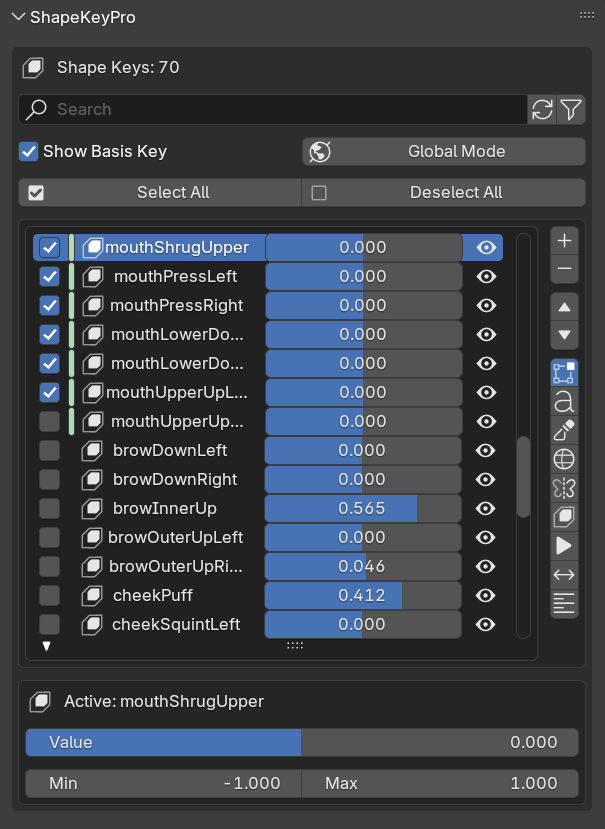
Click on elements in the image to navigate to their descriptions
Search and Filter
Powerful tools for locating and organizing shape keys
- Basic Search: Instantly filter shape keys by name with real-time results
- Search Count Indicator: Shows the number of keys matching your current search term
- Clear Filters: One-click reset of all active filters
- Advanced Filtering: Toggle comprehensive filtering options for complex searches
- Filter by Value: Multiple value filtering modes:
- Current Value: Show keys with current values in a specific range
- Exact Range: Match keys with specific min/max slider values
- Range Overlap: Show keys whose sliders overlap with a defined range
- Filter by State: Show only muted or unmuted shape keys
- Filter by Side: Intelligent filtering for left/right naming patterns (l_, _l, .l, left, r_, _r, .r, right)
- Filter by Group: Organize workflow with group filters:
- In Group: Show only shape keys that belong to any group
- Not In Group: Show only keys that don't belong to any group
- Specific Group: Filter to shape keys in a named group
- Invert Filter: Reverse the filter results to show only non-matching keys
- Combine Filters: Apply multiple filter criteria simultaneously for precision searches
- Filter-Aware Operations: Selection and batch operations respect current filter settings
Global Mode
Synchronize shape keys across multiple objects
- Automatically link shape keys with the same name between different objects
- Adjust one shape key to control matching keys on all objects simultaneously
- Real-time synchronization with smooth value transitions
- Visual indicators show which shape keys are linked:
- • Red sliders for shape keys that exist in multiple objects
- • Special icons indicating global connectivity
- Preserves individual object states when exiting global mode
- Works across any number of objects with compatible shape keys
- Perfect for character rigs with mirrored parts or multiple characters with shared expressions
Show Basis Key
Control visibility of the Basis shape key
- Toggle to show or hide the Basis shape key in the list
- Reduces UI clutter when working with many shape keys
- Focuses the view on editable deformation shape keys
- Prevents accidental modification of the reference shape
Sidebar Toolbar
Quick access buttons for common shape key operations
- Move Up/Down (Triangle buttons): Reorder shape keys in the list with advanced movement options:
- Shift: Move all the way to top/bottom
- Ctrl: Move all selected shape keys
- Shift+Ctrl: Move selected keys all the way to top/bottom
- Alt: Move selected keys above/below active key
- Edit Mode (Edit Mode icon): Toggle Shape Key Edit Mode for direct editing
- Rename (Text icon): Quickly rename the active shape key
- Sculpt Mode (Sculpt brush icon): Toggle sculpt mode with the active shape key at maximum value
- Wireframe Display (Grid icon): Toggle wireframe view for clearer mesh deformation visualization
- Quick Mirror (Mirror icon): One-click mirror shape keys across X-axis
- Set as Basis (Shapekey icon): Use active shape key as the new basis while preserving relative deformations. This powerful feature allows you to:
- Change your reference basis shape without losing existing deformations
- Create backup of original basis as safety measure
- Automatically recalculate all existing keys relative to the new basis
- Update all dependent keys to maintain their visual appearance
- Insta Preview (Play icon): Toggle preview mode that shows the active shape key at maximum value while automatically setting all other keys to zero. Perfect for quick isolated inspection of shape key effects without having to manually adjust sliders
- Invert Shape Key (Arrow LeftRight icon): Invert the active shape key's deformation direction
- Text Alignment (Alignment icon): Cycle between left, center, and right text alignment for improved readability and customized UI appearance
- Sort Shape Keys (Sort Alpha icon): Sort shape keys alphabetically (A-Z, Z-A) or numerically. Supports natural sorting for numbered keys (Key1, Key2, Key10 in correct order), maintaining proper organization for facial expression libraries and complex deformation systems
ShapeKey Operations
The ShapeKey Operation panel provides specialized tools for manipulating individual and selected shape keys.
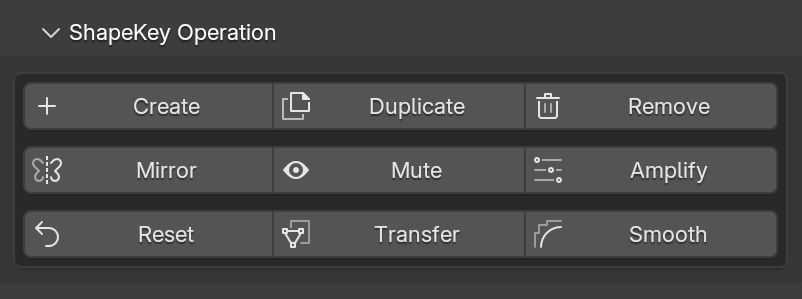
Click on buttons in the image to navigate to their descriptions
Creation & Editing
Create
Generate new shape keys from mesh deformations
- Create shape keys based on current mesh deformations
- Create keys from selected vertices with customizable naming
Duplicate
Create copies of shape keys
- Generate duplicates with automatic naming options
- Optionally mirror the duplicated shape key
Delete
Remove unwanted shape keys safely
- Remove shape keys with dependency management
- Provides confirmation to prevent accidental deletion
Modification
Mirror
Create symmetrical deformations
- Mirror across X, Y, or Z axis with directional control
- Options for selected vertices and precision settings
- Quick Mirror button for one-click X-axis mirroring
- Fix Asymmetry tool to correct uneven shape keys
- Directional mirroring modes for precise control:
- • Standard: Simple reflection of coordinates
- • Directional: Copy from positive to negative side (or reverse)
- Intelligent smart naming for mirrored shape keys
Mute
Temporarily disable shape keys
- Toggle visibility and influence without deletion
- Isolate specific shape keys for focused editing
Amplify
Enhance or reduce deformation intensity
- Multiply shape key deformation strength beyond standard limits
- Live Preview mode shows amplification results in real-time
- Adjust amplification factor with immediate visual feedback
- Create exaggerated expressions from subtle deformations
Advanced Operations
Transfer
Copy shape keys between different meshes
- Multiple Transfer Methods:
- Topology: Uses vertex indices for transfer - fastest method when vertex counts match exactly between source and target. Perfect for identical meshes with different poses or proportions.
- UV: Maps vertices based on UV coordinates - works with different topologies as long as they share similar UV layouts. Ideal for retopologized models that preserve UV mapping.
- Adaptive: Advanced topology-based transfer that analyzes mesh structure to work with different vertex counts and scales. Intelligently maps between similar but non-identical meshes by analyzing edge connections and vertex density.
- Spatial: Maps vertices based on 3D proximity - most versatile method that works with any meshes regardless of topology or UV mapping. Best for quick transfers or when other methods aren't applicable.
- Smart Method Suggestion: Automatically analyzes mesh characteristics and recommends the optimal transfer method based on topology, UV maps, and vertex counts.
- Transfer Options:
- Transfer All: Transfer all non-Basis shape keys at once
- Selected Only: Transfer only shape keys selected in the UI list
- Overwrite Existing: Replace shape keys with same names in target objects
- Selected Vertices Only: Affect only selected vertices in target meshes
- Normalize Range: Adjust transferred shape keys to match source deformation intensity
- UV Layer Name: Specify which UV map to use for UV-based transfers
- Scale Compensation: Automatically detects and adjusts for scale differences between source and target meshes to maintain consistent deformation intensity.
- Driver Transfer: Preserves shape key drivers and animations when transferring between objects.
- Multi-Object Support: Transfer to multiple target objects simultaneously with consistent results.
- Progress Tracking: Real-time progress updates for long transfers with complex meshes.
Reset
Return shape keys to default state
- Reset active shape key to zero value
- Shift+Click shortcut to reset all shape keys at once
- Prevents modifications to the protected Basis key
Smooth
Refine shape key deformations
- Smooth deformation transitions with adjustable strength
- Control smoothing radius to affect neighboring vertices
- Adjust iteration count for more intensive smoothing
- Option to include or exclude selected vertices
- Topology-aware smoothing that follows mesh connectivity
- Only works with selected vertices in Edit mode
Sort Shape Keys
Organize shape keys alphabetically or numerically
- Sort selected shape keys with different sorting modes
- A-Z: Sort alphabetically in ascending order
- Z-A: Sort alphabetically in descending order
- Numerical: Sort based on numbers in shape key names
- Natural sorting recognizes correct numeric order (Key1, Key2, Key10 instead of Key1, Key10, Key2)
- Maintains selection state and avoids moving the Basis key
Relative Mode
Specialized editing mode for complex shape key work
- Edit shape keys relative to their current deformation state
- Perfect for creating complex expressions that build on other shape keys
- Significantly improves performance when working with high-poly meshes
- Toggle easily between absolute and relative editing modes
Invert Shape Key
Reverse deformation direction
- Flip the deformation direction of the active shape key
- Convert push deformations to pull (and vice versa)
- Creates opposite expressions from existing shape keys
Combine
Merge shape key influences
- Combine multiple shape keys into a single deformation
- Use current values as weights for natural blending
- Option to remove source keys after merging
- Intelligent name generation for new combined keys
- Multiple combination modes:
- • Current values: Use slider positions as weights
- • Equal weights: Uniform influence from all keys
- • Custom: Specify exact weighting per key
- Works with all selected keys or all visible keys
Apply
Make shape key deformations permanent
- Apply current shape key deformations to the base mesh
- Reset relative keys to compensate for the new basis
- Create backup shape keys before applying changes
- Recalculate all dependent keys to maintain their appearance
- Option to apply only selected shape keys
- Properly handles key dependencies and relationships
- Preserves relative offsets between shape keys
Batch Operations
The Batch Operation panel enables processing multiple shape keys simultaneously, improving efficiency when working with complex character rigs. All batch operations work on shape keys that you've selected in the main panel (checkboxes).
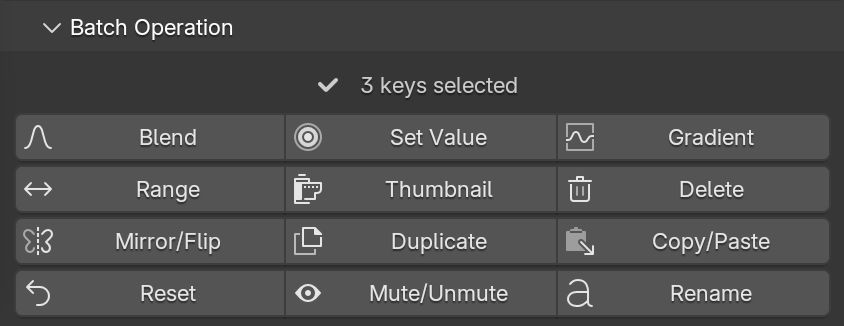
Click on buttons in the image to navigate to their descriptions
How Batch Operations Work
Understanding the technical workflow of batch operations can help you use them more effectively:
- Selection System: All batch operations identify and process shape keys that have been selected in the main panel (via checkboxes).
- Basis Protection: Most batch operations automatically skip the "Basis" shape key to prevent corruption of your mesh's base state.
- Modifier Keys: Many batch operations support modifier keys (Shift, Ctrl, Alt) to extend their functionality. Watch for tooltip descriptions in the interface.
- UI Updates: After operations complete, ShapeKeyPro automatically updates the UI and preserves selection states where possible.
- Filters and Visibility: The "Select All" and "Deselect All" buttons respect current filters, allowing you to batch-process specific subsets of shape keys.
Batch Value Control
Blend
Combine multiple shape keys
- Merge multiple keys using current values as weights
- Create complex expressions from simpler components
Gradient
Advanced value distributions across shape keys
- Apply curved value distributions with complete curve controls
- Multiple curve types: Linear, Quadratic, Sine, Bounce
- Intensity slider (0-1) controls curve strength: 0.5 is normal, higher values create more pronounced curves
- Configure sorting methods: Sort by Name, Sort by Index, Sort by Value
- Reverse gradient direction to create alternating patterns
- Mathematically precise distribution of values with curve algorithms
- Extended value range support beyond standard 0-1 limits
Range
Create graduated sequence of values
- Distribute values from a start to end point
- Sort by name, index, or value before applying
Batch Management
Search and Filter
Powerful tools for locating and organizing shape keys
- Basic Search: Instantly filter shape keys by name with real-time results
- Search Count Indicator: Shows the number of keys matching your current search term
- Clear Filters: One-click reset of all active filters
- Advanced Filtering: Toggle comprehensive filtering options for complete control
- Value Range Filtering: Find keys within specific value ranges (min/max)
- Mute State Filtering: Show only muted or unmuted keys
- Side Filtering: Filter by left/right naming patterns (.L/.R, _L/_R, etc.)
- Group Filtering: Filter by group membership with options for in-group, not-in-group, or specific group
- Invert Filter: Reverse the filter results to show only non-matching keys
- Filter-Aware Selection: "Select All" and "Deselect All" respect current filter settings
Group Management
Maintain group structure
- Reorder and rename groups with automatic reference updating
- Delete groups with options for handling member keys
Mirror/Flip
Process symmetry operations on multiple keys
- Apply various mirroring operations to selected keys
- Options for directional control and vertex selection
Batch Editing
Set Value
Define specific influence amounts
- Set fixed values for multiple shape keys at once
- Soft clamping allows values to exceed the standard 0-1 range while providing visual feedback
- Values outside the standard range are highlighted to indicate extended deformation
Thumbnail
Create preview images
- Generate thumbnails for selected shape keys
- Customize thumbnail image size and view settings
- Real-time progress indicator shows which shape key is being processed
- Cancel generation at any time with ESC key
- Create organized tile sheets with multiple thumbnails in a grid layout
- Add customizable text labels with font styling and positioning options
- Adjustable compression for optimizing file sizes
- Complete control over layout, colors, spacing, and grid arrangement
- Supports both viewport and active camera perspectives
Delete
Remove multiple shape keys at once
- Batch deletion with confirmation to prevent accidents
- Dependency checking to warn about affected shape keys
Mirror/Flip
Process symmetry operations on multiple keys
- Mirror across X, Y, or Z axis for multiple shape keys using topology-based vertex matching
- Create symmetrical duplicates in a single operation with smart naming (.L/.R conventions)
- Three operation modes: Mirror, Directional Mirror, and Flip
- Directional mirroring provides control over positive-to-negative or negative-to-positive copying
- Optional vertex selection support for partial mirroring
- Create copies instead of modifying originals with a single checkbox
- Option to set keys to maximum value after operation for immediate visualization
Duplicate
Create copies of multiple shape keys
- Duplicate all selected shape keys at once
- Append name suffixes automatically to distinguish copies
- Intelligent sequential numbering for multiple duplicates (.1, .2, etc.)
- Preserves all properties: values, slider limits, and mute states
- Automatically positions new keys after their originals in the list
Copy/Paste
Transfer shape between multiple keys
- Step 1: Click on the shape key you want to copy FROM (making it active)
- Step 2: Select the shape keys you want to copy TO (check their boxes)
- Step 3: Click the Copy/Paste button and adjust options:
- • Preserve Relative Values: Keeps deformation style rather than exact positions
- • Blend Factor: Controls how much to copy (100% = exact copy)
- • Selected Vertices Only: Affects only vertices you've manually selected
Reset
Return multiple shape keys to default states
- Reset values to zero for multiple selected shape keys at once
- Shift+Click shortcut to reset all keys in a single operation
- Efficiently neutralize groups of related shape keys
- Automatically skips the Basis key to prevent corrupting your mesh's base state
- Works with hidden and filtered shape keys when using the "Reset All" option
Mute/Unmute
Control the active state of multiple keys
- Toggle visibility of multiple shape keys simultaneously
- Isolate specific keys by muting/unmuting in groups
- Option to toggle all keys to the same state or invert current states
- Keyboard shortcuts for quick operation (Shift+Click for all keys)
Rename
Modify names of multiple shape keys with patterns
- Three powerful renaming modes:
- • Prefix/Suffix: Add text before or after existing names
- • Search & Replace: Find and replace specific text patterns
- • Rename Pattern: Create new names with sequential numbering using # placeholder
- Multi-replace mode for handling multiple search terms at once using pipe | separator
- Automatic conflict resolution for duplicate names
- Intelligent updating of group memberships to preserve organization
- Selection state preservation ensures your shape key selection remains after renaming
- Automatic skipping of the Basis key to prevent mesh corruption
Thumbnail Generator
Create visual references for your shape keys with customizable thumbnail images.
Thumbnail Generator
The Thumbnail Generator creates visual snapshots of your shape keys, making it easy to document and reference your character's expressions or model states. Generate individual thumbnail images or combine them into organized tile sheets.
Key Features
Thumbnail Generation
Create visual references for shape keys
- Generate images for all shape keys or selected ones only
- Customize thumbnail size and resolution
- New: Real-time progress indicator shows which shape key is being processed
- Cancel the operation at any time by pressing ESC
- Use current viewport or scene camera for rendering
- Automatically isolates each shape key by setting it to 1.0 value during capture
- Intelligent filename sanitization ensures valid filenames for all operating systems
Text Labeling
Annotate thumbnails with shape key names
- Add shape key names as text labels on thumbnails
- Customize font, size, color, and position
- Advanced styling options including outlines, shadows, and backgrounds
- Support for custom fonts to match your project style
- Six positioning options: top/bottom left/center/right
- Semi-transparent text backgrounds ensure readability on any image
- Automatic font detection finds system fonts on Windows, macOS, and Linux
Tile Sheet Creation
Combine multiple thumbnails into a single reference image
- Arrange thumbnails in a customizable grid layout
- Adjust spacing, borders, and background colors
- Add text labels beneath each thumbnail for easy identification
- New: Compress tile sheet resolution to reduce file size
- Create comprehensive reference sheets for documentation
- Intelligent grid calculation automatically organizes thumbnails optimally
- Custom grid options allow control over rows and columns
- Color customization for backgrounds, borders, and text elements
How to Use
-
Accessing the Tool:
Open the ShapeKeyPro panel and navigate to the Batch Operations tab. Click on the "Thumbnail" button in the Batch Management section.
-
Setting Up:
Configure the thumbnail settings:
- Set the output directory where images will be saved
- Adjust resolution (width and height)
- Choose whether to include the Basis shape key
- Decide to use selected shape keys only or all shape keys
- Select whether to use the current viewport or camera view
-
Creating Thumbnails:
Click "OK" to start generation. You'll see a real-time progress indicator in the status bar showing:
- Current shape key being processed
- Progress percentage (e.g., "Generating thumbnail 5/20 (25%): 'Smile'")
- You can press ESC at any time to cancel the operation
-
Creating Tile Sheets:
In the Tile Sheet tab, enable "Generate Tile Sheet" and configure:
- Output filename
- Grid columns and rows
- Spacing and border settings
- Resolution percentage (lower values create smaller file sizes)
- Background color and label options
How It Works
Technical Process
Behind the scenes of thumbnail generation
- Shape Key Isolation: The generator systematically isolates each shape key by setting its value to 1.0 while resetting all others to 0.0
- Screenshot Capture: Uses Blender's native viewport or camera render to create high-quality snapshots
- Image Processing: Utilizes the Python Imaging Library (PIL/Pillow) for text addition and image manipulation
- Background Processing: Runs as a modal operator that allows cancellation and provides real-time feedback
- State Preservation: Saves and restores original shape key values after completion
- Intelligent Naming: Automatically sanitizes shape key names for valid filenames across operating systems
- Memory Efficient: Processes one shape key at a time to minimize memory usage
- Tile Sheet Algorithm: Advanced grid calculation that optimizes layout based on thumbnail count
Shape Key Groups
The Shape Key Groups panel provides tools for categorizing shape keys into collections, enabling more efficient workflow with complex rigs.
Shape Key Groups
The Shape Key Groups panel provides a powerful system for organizing and controlling collections of shape keys, making it easier to manage complex character rigs or mechanical deformations.
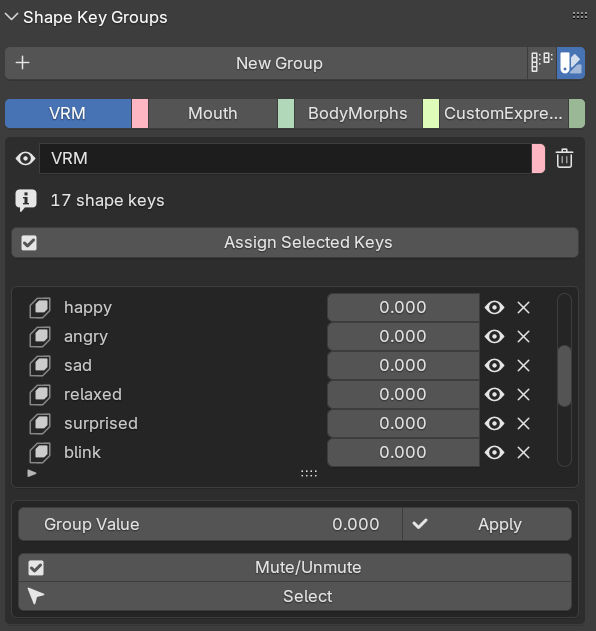
The Shape Key Groups panel interface
How to Use
Create a Group
Getting started with groups
- Open the "Shape Key Groups" panel in the ShapeKeyPro section
- Click "New Group" and name it
- Each group is assigned a random color for identification
Add Shape Keys to Groups
Organizing your shape keys
- Select shape keys in the main panel
- Click "Assign Selected Keys" in the target group
- Shape keys will be color-coded in the main list based on their group
Control Groups
Managing multiple shape keys at once
- Master Value: Adjust the group's slider to set all shape keys to the same value
- Enable/Disable: Mute or unmute all shape keys in a group with one click
- Selection: Select all shape keys in a group for batch operations
Filtering
Focus on specific shape keys
- Use the filter dropdown to show only shape keys:
- - In any group
- - Not in any group
- - In a specific group
How It Works
Understanding Shape Key Groups
A simple explanation of the group system
- Shape Key Groups work like folders for organizing related shape keys (facial expressions, body parts, etc.)
- Each shape key can belong to one or more groups, and will be color-coded in the main list for easy identification
- The group panel gives you tools to control multiple shape keys at once:
- • Use the master slider to set all keys in a group to the same value
- • Enable/disable all shape keys in a group with one click
- • Select all members for batch operations
- Groups help keep your work organized with color-coding and filtering options
- Groups are saved with your Blender file but are not exported to external formats (FBX, OBJ, etc.)
Troubleshooting & FAQ
Common issues and solutions when working with ShapeKeyPro.
Common Issues
Installation Problems
Troubleshooting addon installation issues
- Q: The addon doesn't appear in the list after installation
A: Make sure you're installing the correct .zip file without extracting it first. Try restarting Blender. - Q: I can't find ShapeKeyPro in the N panel
A: Ensure the addon is enabled in Preferences. Press N in the 3D viewport to open the side panel and look for the ShapeKeyPro tab. - Q: The addon disappears after restarting Blender
A: Click "Save Preferences" after enabling the addon to make it persistent.
Shape Key Issues
Common problems with shape key operations
- Q: Mirror shape key isn't working correctly
A: Ensure your mesh has perfect symmetry and proper topology. - Q: Shape keys appear to be missing
A: Check if the filter settings in the main panel are hiding some keys. Reset filters using the reset button.
Performance & Best Practices
Performance Tips
Optimizing performance with shape keys
- Q: ShapeKeyPro seems slow with high-poly meshes
A: Performance issues can be caused by complex material setup in Eevee, high subdivision levels, or detailed geometry. To improve performance:
1. Display Mode: Switch to Solid viewport display mode
2. Subdivision: Temporarily reduce subdivision modifiers - Q: Batch operations are taking too long
A: Batch operations on complex meshes with many shape keys can be resource-intensive. Consider processing fewer shape keys at once.
General FAQs
Other common questions
- Q: Can I use ShapeKeyPro with multiple objects?
A: Yes, each mesh object will have its own ShapeKeyPro configuration. - Q: Are shape keys created with ShapeKeyPro compatible with standard Blender?
A: Yes, all shape keys created with ShapeKeyPro are standard Blender shape keys and will work normally if you disable the addon. - Q: Can I export shape keys created with ShapeKeyPro?
A: Yes, they can be exported using standard Blender file formats that support shape keys (like .blend, .fbx, etc.) - Q: How can I get support for other issues?
A: Check the documentation's Feedback/Support section or contact me through Super Hive where you purchased the addon.
Report & Feedback
We're constantly improving ShapeKeyPro with your help. Report bugs, suggest features, or provide general feedback.
Contact Information
Report Issues
Report bugs or technical problems
- Please include the following information when reporting issues:
- • Blender version (e.g., 4.0, 4.4)
- • Operating system (Windows, macOS, Linux)
- • ShapeKeyPro version
- • Detailed description about the issue
- • Screenshots or videos if possible
- • Email: mk.kaif3d@gmail.com
Feedback & Suggestions
Help shape the future of ShapeKeyPro
- Your feedback helps us prioritize development efforts
- Feature requests are evaluated based on:
- • Technical feasibility
- • User benefit
- • Alignment with addon goals
- We read and consider all suggestions
- Email: mk.kaif3d@gmail.com
Changelog
A detailed history of updates and improvements to ShapeKeyPro.
Version History
Version 1.0.1 - July 29, 2025
- Compatibility: Now supports Blender versions 3.6.0 and up
- Bug Fix: Shift+Create now works properly when in Edit mode
- Bug Fix: Amplify no longer applies changes automatically when entering Edit mode
Version 1.0.0 - June 1, 2025
- Initial release of the addon
License
License Information
ShapeKeyPro is distributed under the GNU General Public License version 3. All source code including the Python and BPY modules are covered by this license.